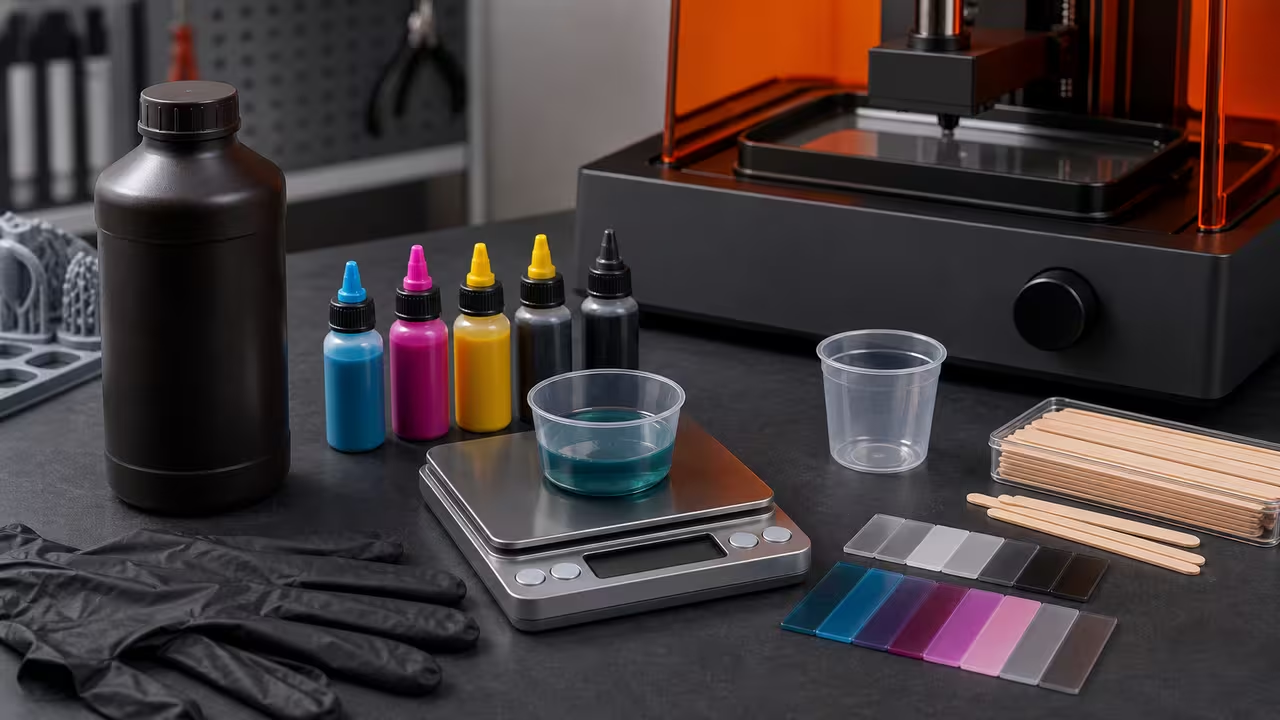
3D Printer Resin Colorant Dosing Calculator

JJ Ben-Joseph headshot JJ Ben-Joseph

Introduction: why 3D Printer Resin Colorant Dosing Calculator matters

In the real world, the hard part is rarely finding a formula—it is turning a messy situation into a small set of inputs you can measure, validating that the inputs make sense, and then interpreting the result in a way that leads to a better decision. That is exactly what a calculator like 3D Printer Resin Colorant Dosing Calculator is for. It compresses a repeatable process into a short, checkable workflow: you enter the facts you know, the calculator applies a consistent set of assumptions, and you receive an estimate you can act on.

People typically reach for a calculator when the stakes are high enough that guessing feels risky, but not high enough to justify a full spreadsheet or specialist consultation. That is why a good on-page explanation is as important as the math: the explanation clarifies what each input represents, which units to use, how the calculation is performed, and where the edges of the model are. Without that context, two users can enter different interpretations of the same input and get results that appear wrong, even though the formula behaved exactly as written.

This article introduces the practical problem this calculator addresses, explains the computation structure, and shows how to sanity-check the output. You will also see a worked example and a comparison table to highlight sensitivity—how much the result changes when one input changes. Finally, it ends with limitations and assumptions, because every model is an approximation.

What problem does this calculator solve?

The underlying question behind 3D Printer Resin Colorant Dosing Calculator is usually a tradeoff between inputs you control and outcomes you care about. In practice, that might mean cost versus performance, speed versus accuracy, short-term convenience versus long-term risk, or capacity versus demand. The calculator provides a structured way to translate that tradeoff into numbers so you can compare scenarios consistently.

Before you start, define your decision in one sentence. Examples include: “How much do I need?”, “How long will this last?”, “What is the deadline?”, “What’s a safe range for this parameter?”, or “What happens to the output if I change one input?” When you can state the question clearly, you can tell whether the inputs you plan to enter map to the decision you want to make.

How to use this calculator

  1. Enter Resin volume to tint (mL) using the units shown in the form.
  2. Enter Resin density (g/mL) using the units shown in the form.
  3. Enter Pigment density (g/mL) using the units shown in the form.
  4. Enter Target pigment percentage by weight (0-10%) using the units shown in the form.
  5. Enter Manufacturer maximum pigment (%) using the units shown in the form.
  6. Enter Safety margin (%) using the units shown in the form.
  7. Click the calculate button to update the results panel.
  8. Review the result for sanity (units and magnitude) and adjust inputs to test scenarios.

If you are comparing scenarios, write down your inputs so you can reproduce the result later.

Inputs: how to pick good values

The calculator’s form collects the variables that drive the result. Many errors come from unit mismatches (hours vs. minutes, kW vs. W, monthly vs. annual) or from entering values outside a realistic range. Use the following checklist as you enter your values:

Common inputs for tools like 3D Printer Resin Colorant Dosing Calculator include:

If you are unsure about a value, it is better to start with a conservative estimate and then run a second scenario with an aggressive estimate. That gives you a bounded range rather than a single number you might over-trust.

Formulas: how the calculator turns inputs into results

Most calculators follow a simple structure: gather inputs, normalize units, apply a formula or algorithm, and then present the output in a human-friendly way. Even when the domain is complex, the computation often reduces to combining inputs through addition, multiplication by conversion factors, and a small number of conditional rules.

At a high level, you can think of the calculator’s result R as a function of the inputs x1xn:

R = f ( x1 , x2 , , xn )

A very common special case is a “total” that sums contributions from multiple components, sometimes after scaling each component by a factor:

T = i=1 n wi · xi

Here, wi represents a conversion factor, weighting, or efficiency term. That is how calculators encode “this part matters more” or “some input is not perfectly efficient.” When you read the result, ask: does the output scale the way you expect if you double one major input? If not, revisit units and assumptions.

Comparison table: sensitivity to a key input

The table below changes only Resin volume to tint (mL) while keeping the other inputs constant. The “scenario total” is shown as a simple comparison metric so you can see sensitivity at a glance.

Scenario Resin volume to tint (mL) Other inputs Scenario total (comparison metric) Interpretation
Conservative (-20%) 400 Unchanged 402.3 Lower inputs typically reduce the output or requirement, depending on the model.
Baseline 500 Unchanged 502.3 Use this as your reference scenario.
Aggressive (+20%) 600 Unchanged 602.3 Higher inputs typically increase the output or cost/risk in proportional models.

In your own work, replace this simple comparison metric with the calculator’s real output. The workflow stays the same: pick a baseline scenario, create a conservative and aggressive variant, and decide which inputs are worth improving because they move the result the most.

How to interpret the result

The results panel is designed to be a clear summary rather than a raw dump of intermediate values. When you get a number, ask three questions: (1) does the unit match what I need to decide? (2) is the magnitude plausible given my inputs? (3) if I tweak a major input, does the output respond in the expected direction? If you can answer “yes” to all three, you can treat the output as a useful estimate.

When relevant, a CSV download option provides a portable record of the scenario you just evaluated. Saving that CSV helps you compare multiple runs, share assumptions with teammates, and document decision-making. It also reduces rework because you can reproduce a scenario later with the same inputs.

Limitations and assumptions

No calculator can capture every real-world detail. This tool aims for a practical balance: enough realism to guide decisions, but not so much complexity that it becomes difficult to use. Keep these common limitations in mind:

If you use the output for compliance, safety, medical, legal, or financial decisions, treat it as a starting point and confirm with authoritative sources. The best use of a calculator is to make your thinking explicit: you can see which assumptions drive the result, change them transparently, and communicate the logic clearly.

How the resin colorant dosing calculation works

The basic idea is to estimate how much your resin batch weighs, apply a target pigment percentage, and then check that against the maximum loading the resin manufacturer recommends.

  1. Estimate resin mass from resin volume and density.
  2. Apply the target pigment percentage (by weight) to get a desired pigment mass.
  3. Apply the manufacturer maximum to get a hard upper bound for pigment mass.
  4. Apply a safety margin so you stay a bit under the theoretical or vendor limit.
  5. Convert pigment mass to volume using pigment density, so you can measure in milliliters or drops.

The key step is turning the intuitive “percent by weight” into real grams and milliliters. In simplified algebraic form:

Resin mass: m_resin = V_resin × ρ_resin

Target pigment mass by weight percentage: m_pig,target = m_resin × p 100

Manufacturer maximum pigment mass: m_pig,max = m_resin × p_max 100

Safety-adjusted cap (applying a safety margin s in percent): m_pig,safe = m_pig,max × ( 1 - s 100 )

The calculator then compares the target pigment mass to the safety-adjusted maximum, and uses the lower value for dosing. Finally, it converts the final pigment mass to volume using pigment density so you can measure in mL:

V_pigment = m_pig,final ρ_pigment

How to use the 3D printer resin colorant dosing calculator

  1. Resin volume to tint (mL) — Enter the actual batch size you plan to mix (for example, 250 mL for a small test, 500 mL for a full vat top‑up).
  2. Resin density (g/mL) — Many standard resins are around 1.05–1.2 g/mL. If your datasheet lists specific gravity, you can use that number directly as g/mL.
  3. Pigment density (g/mL) — Heavy, highly loaded pigments tend to be denser than resin. Check the label or supplier data. If unknown, use an estimate and validate with test batches.
  4. Target pigment percentage by weight — This is your desired loading. Typical starting points for photopolymer pigments are about 0.5–3 % by weight for translucent or lightly tinted resins. Higher values create more saturation but also more curing risk.
  5. Manufacturer maximum pigment (%) — Use the maximum loading recommended by the resin vendor or pigment supplier. If they specify a range (for example, up to 3 %), use the upper end here and let your safety margin pull you down slightly.
  6. Safety margin (%) — This reduces the theoretical maximum. A value like 10–20 % is a common choice if you are exploring a new resin + pigment combination or are uncomfortable running right at the limit.
  7. Decimal places for reporting (0–4) — Controls how many decimals appear in the results. Fewer decimals are easier to measure with typical mixing tools; more decimals are useful when you are logging recipes or using a precision scale.

After entering your values, run the calculation. The results panel will show pigment mass and volume, and may indicate whether your target loading was clipped down to stay below the manufacturer limit after applying the safety margin.

Worked example: tinting a 500 mL resin batch

Imagine you want to tint a standard SLA resin for branded parts:

The calculator will roughly perform the following steps:

  1. Resin mass = 500 mL × 1.1 g/mL = 550 g.
  2. Target pigment mass = 550 g × 2 % = 11 g.
  3. Maximum pigment mass (from manufacturer) = 550 g × 3 % = 16.5 g.
  4. Safety-adjusted cap with 10 % margin = 16.5 g × 0.9 = 14.85 g.
  5. Final pigment mass = min(11 g, 14.85 g) = 11 g (your desired 2 % is well below the safety-adjusted maximum).
  6. Pigment volume = 11 g / 1.2 g/mL ≈ 9.17 mL.

In this case, the results would tell you to add about 11 g of pigment, or about 9.2 mL if you are measuring by volume. Because your target is under the safety-adjusted manufacturer limit, you keep your full desired saturation.

If you had chosen a more aggressive target (say 4 % with the same maximum), the calculator would cap the dose at the 3 % maximum minus your safety margin and clearly show that the target was clipped.

Interpreting your dosing results

Once you have a recommended pigment mass and volume, use these guidelines to make decisions:

After mixing a new color, it is wise to run a small exposure calibration or step‑wedge print and adjust layer exposure times, bottom layers, or light intensity before committing to critical parts.

Typical pigment loading ranges and trade‑offs

Exact safe ranges depend on your resin, pigment chemistry, printer, and light engine. The table below summarizes common trade‑offs for photopolymer systems.

Pigment loading (by weight) Typical use case Visual result Print performance considerations
< 0.5 % Subtle tinting, marking non‑critical parts Very light tint, mostly translucent Usually minimal impact on exposure; often close to base resin behavior
0.5–2 % General custom colors for SLA/DLP Noticeable color with some translucency May require modest exposure increases; mechanical properties often acceptable
2–4 % Strong tinting, branding colors, opaque effects Deep color, less light transmission Higher risk of undercuring in thick sections; exposure tuning and testing are important
> 4 % (if allowed) Special effects, heavy pigmentation, experimental use Very saturated, often opaque Significant UV blocking; can cause failed prints, low strength, or soft interiors without careful validation

Always treat these ranges as starting points. If the manufacturer specifies a narrower range, their guidance takes priority over generic rules of thumb.

Assumptions and limitations of this calculator

This calculator is designed as a planning and documentation aid, not a substitute for lab testing or the resin vendor’s technical data sheets. It relies on several simplifying assumptions:

Because of these limitations, always validate a new pigment recipe with small test batches and test prints before scaling up.

Practical tips for safe and repeatable resin tinting

If you also need to plan post‑processing and material usage, pair this tool with dedicated utilities such as a resin post‑cure energy planner and a filament or resin consumption estimator so your color planning fits into your overall print workflow.

FAQ: resin pigment dosing and color matching

What happens if I add too much pigment to resin?

Excess pigment can block curing light, leading to soft or uncured interiors, warped parts, incomplete features, or a sticky surface that never fully hardens. It may also reduce mechanical strength, especially in thicker sections where light penetration is limited.

Can I mix different pigment brands or colors?

Mixing colors from the same pigment system is common and usually safe if you stay within the total loading limit. Mixing across brands or chemistries is more risky; binders or additives can interact poorly with your resin. If you experiment, keep loads conservative and test on small parts.

Do I need to change exposure times after tinting resin?

In most cases, yes. Darker, more opaque colors absorb or scatter more light, so you will often need higher exposure times, more bottom layers, or slightly different lift speeds. Use the calculator to stay within pigment limits, then run a calibration print to determine the new optimal exposure settings.

How accurate are density‑based pigment calculations?

For hobby and light professional use, density‑based calculations are usually more than accurate enough, provided your density values are realistic and your scale or measuring tools are reliable. For critical applications or high‑volume production, treat the results as a starting point and confirm with test batches and QA procedures.

Enter resin volume, densities, and pigment goals to generate dosing guidance.
Pigment Loading Benchmarks
Application Typical pigment % Notes Exposure adjustment
Brand color prototypes 1.5% Balances vibrancy and cure speed +5% exposure
Opaque art pieces 3% Requires aggressive stirring +12% exposure
Translucent effects 0.5% Minimal impact on cure 0-2% exposure
Functional housings 2% Maintains mechanical properties +8% exposure
Engineering resins 1% Check manufacturer datasheet +3% exposure

How to calculate safe pigment loads for photopolymer resin

Resin colorant dosing blends chemistry with process control. Pigment particles absorb and scatter UV light, so every addition influences cure depth, exposure times, and mechanical performance. This calculator uses straightforward mass-balance equations to translate a target pigment percentage into both gram and milliliter measurements. Because pigment concentrates and base resins often have different densities, converting between mass and volume is essential. The tool starts with your resin volume, applies the density to compute the base resin mass, and then calculates the pigment mass required to hit the target percentage while respecting manufacturer limits and an optional safety margin.

The safety margin reduces the permissible pigment load by a chosen percentage, safeguarding against mixing inconsistencies or hidden additives. For instance, a 10% safety margin on a 3% manufacturer limit yields a 2.7% operational ceiling. The calculator compares this adjusted maximum to your target. If the target exceeds the safe threshold, it preserves the last valid result and displays a warning so you can revise your inputs. This behavior mirrors the guardrails found in the filament drying time calculator, which likewise prevents unrealistic scenarios while keeping previous data on screen.

Once the inputs pass validation, the calculator generates a comprehensive report. It lists the resin mass, the maximum allowable pigment mass, the recommended pigment addition, the equivalent volume of pigment, and the percentage of manufacturer limit used. It also suggests exposure time adjustments based on empirical rules of thumb. These adjustments align with the curing strategies detailed in the resin post-cure dose planner, making it easier to coordinate mixing decisions with downstream finishing steps.

The report features a MathML block that captures the core mass-balance equation:

m _ pigment = m _ resin \times p 100

where p is the target pigment percentage. The mass result is then converted to volume using the pigment density. The calculator rounds outputs to the decimal precision you choose, with options from zero to four decimal places to balance clarity and accuracy.

Pigment dispersal techniques matter as much as the math. The explanation section delves into best practices like pre-mixing pigment into a small resin portion, slowly folding it into the main vat, and filtering through a 190-micron mesh to remove clumps. These recommendations draw from professional print shops and align with the workflow templates available in the 3D printer ownership vs. service cost calculator. By coupling process advice with quantitative guidance, the tool helps makers avoid common pitfalls such as sedimentation, under-cured surfaces, or color banding.

Frequently asked questions

Can I enter resin mass instead of volume? Not directly. Convert the mass to volume using the resin density first. This choice keeps the interface consistent with other AgentCalc tools that begin with volume, such as the filament usage estimator.

What if my pigment is supplied as a percentage concentrate? Enter the effective pigment density after accounting for the carrier. The explanation offers a step-by-step conversion example to assist.

How do I handle multi-color mixes? Break the total target percentage into individual pigment percentages that sum to the desired load. Run the calculator for each pigment and ensure the combined load remains under the manufacturer’s limit.

Extended best practices

The remaining paragraphs provide more than 1,000 words of practical guidance so makers can build a repeatable color-mixing program. Topics include equipment selection, storage, documentation, and quality control. Each section uses plain English to support both hobbyists and production teams.

Equipment considerations cover mixing sticks, vortex shakers, and opaque containers that protect resin from ambient light. The article explains how to stage materials in a clean workspace, verify pigment expiration dates, and calibrate scales with 0.01 g resolution. It ties these habits back to safety data sheet requirements, reminding users to wear nitrile gloves and protective eyewear. The workflow mirrors the safety emphasis found in the resin post-cure dose calculator, where precise timing and protective gear are equally important.

Mixing technique receives detailed treatment. The article recommends splitting the resin volume into a “slurry” batch for pigment dispersion and a “bulk” batch for dilution. Stirring motions should alternate between circular sweeps and figure-eight patterns to prevent streaking. After blending, degas the resin in a vacuum chamber or let it rest to release trapped bubbles. The text explains why bubbles interfere with laser paths in SLA printers and how to mitigate them with heat guns or controlled warming.

Quality control involves creating swatch prints or cure strips. The calculator encourages logging each recipe alongside print settings like layer height, exposure time, and support density. Keeping these records in a shared spreadsheet or using the nozzle wear cost calculator as a template helps teams spot trends. The article describes how to perform delta-E color measurements with handheld meters and how to adjust pigment loads gradually to chase a specific hue.

Storage and shelf-life management round out the guide. Pigmented resins should be stored in opaque, airtight containers and agitated before reuse. The text explains how sediment forms and offers strategies like gentle tumbling or ultrasonic baths to re-suspend pigments. It also suggests labeling containers with mix dates and safety margin details so future print runs can replicate the same recipe.

Troubleshooting tips address common issues such as under-cured surfaces, color banding, and excessive viscosity. Each tip references the relevant calculator for deeper analysis—for example, using the resin viscosity adjustment calculator to adjust working conditions when cold weather thickens the mix. By weaving these references throughout, the guide turns a single calculator into a hub for broader knowledge.

Finally, the explanation encourages sustainability. It suggests planning small test batches to reduce waste, recycling leftover pigment when possible, and following local regulations for resin disposal. These practices align with the ethos of AgentCalc’s environmental calculators such as the 3D printing carbon footprint calculator.

Embed this calculator

Copy and paste the HTML below to add the 3D Printer Resin Colorant Dosing Calculator - Pigment Mixing Planner to your website.